-1.png?width=240&height=100&name=Heading%20(2)-1.png)
Navigating to Subscriptions
Go to Contacts > Membership Management, then select the Subscriptions tab from the left sidebar.
⬜ SCREENSHOT: Subscriptions tab in the Membership Center showing the list of subscriptions
The Subscriptions List
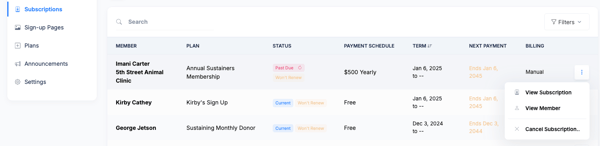
Each row in the subscriptions list shows the subscriber name, plan, status, billing amount, start date, and next billing date. Use the search and filter options to find subscriptions by name, plan, status, or date range.
Click the three-dot menu on any subscription row to access quick actions:
- View Subscription — opens the subscription detail page
- View Member — opens the member detail page
- Cancel Subscription — immediately cancels the subscription
Subscription Detail Page
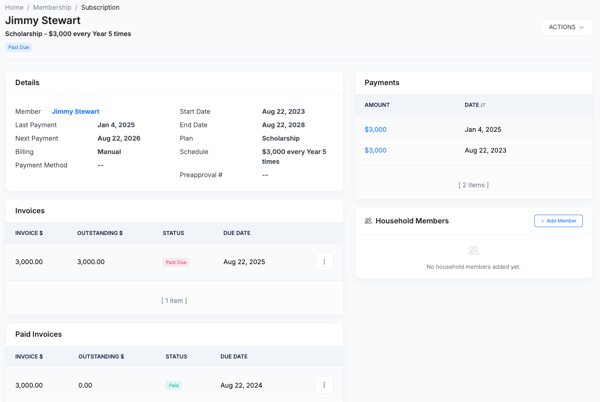
Click View Subscription from the three-dot menu to open the subscription detail page. This page displays:
- Plan name, billing amount, billing frequency, subscription start date, end date (if set), and current status
- Invoice history: a list of all payments with dates, amounts, and status (paid, scheduled, or failed)
- Household Members section (if the plan has household memberships enabled): list of household members with name, role (Adult/Child), and date added
Actions Menu on the Subscription Detail Page
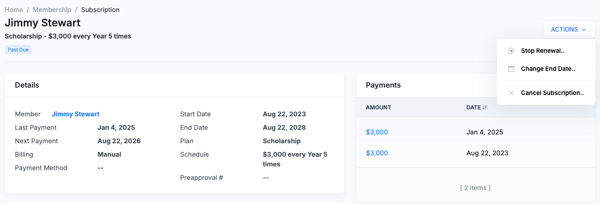
The Actions menu on the subscription detail page provides the following options:
- Cancel Subscription: Immediately cancels the subscription. The subscriber loses membership access. Past payments are preserved.
- Stop Renewal: The subscription stays active through its current term, then ends without auto-renewing. The member retains access until the term ends.
- Change End Date: Updates the subscription's end date. Invoices scheduled past the new end date are removed.
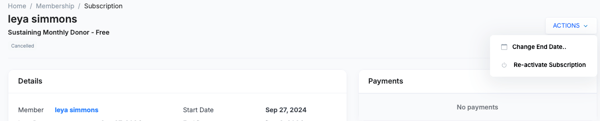
- Reinstate Subscription (appears when subscription is not active): Restarts a cancelled, failed, or completed subscription. The system regenerates invoices and resumes billing. See Reinstate Subscription.
The Member Detail Page
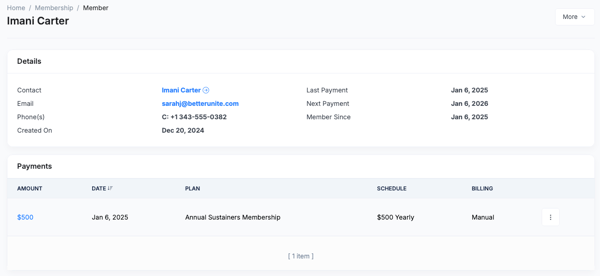
Click View Member (from the three-dot menu or from within the subscription detail page) to open the full member detail page. This page shows the member's contact information, all subscriptions (current and historical), payment details, benefits, and member messages.
Adding Benefits
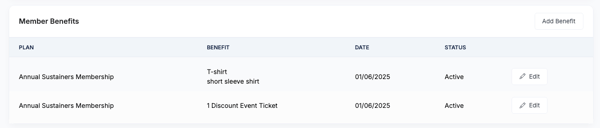
Scroll down and click Add Benefit to attach a benefit to this specific member. Fill in the Title and Description, set the fulfillment status (Active or Completed), and choose whether the benefit is visible to the member in their Supporter Portal. Click Save Benefit. The benefit appears on the member's record and, if marked visible, in their portal.
For plan-level benefits that apply to all subscribers, see Membership Benefits.
Adding Member Messages
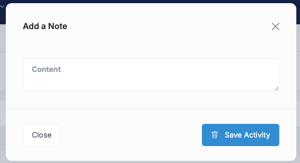
From the member detail page, you can post notes that are visible to the member in their Supporter Portal under the Messages tab. These are individual messages to a specific member. To send a message or post an alert to all members at once, see Global Announcements, Alerts & Benefits.

New in June 2026
- Reinstate Subscription action added — restarts cancelled or failed subscriptions without requiring re-enrollment. See Reinstate Subscription.
- Household Members section now appears on subscription detail pages for plans with household memberships enabled.
- Expiring subscriptions are surfaced on the new Expiring Subscriptions tab on the Membership Overview page.
Need Additional Help?
We're here to assist you in any way we can. Don't hesitate to reach out to support@betterunite.com
Let's go do some good.