-1.png?width=240&height=100&name=Heading%20(2)-1.png)
A compelling campaign page helps tell your story, build trust, and drive more donations, registrations, or purchases. BetterUnite’s Page Design tools make it easy to customize the look, layout, and branding of your campaign—no design experience required.
Page Design is available for all campaign types (donation, event, auction, peer-to-peer, and more). Event campaigns include additional options for customizing offers and sections.
Accessing Page Design
-
Open your campaign Edit (Campaign,Event, etc).
-
From the left-hand menu, select Page Design>Branding & Layout.
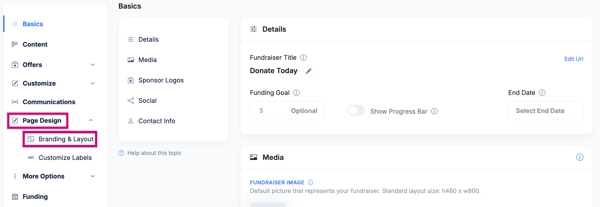
This opens the Page Design editor where you can control templates, backgrounds, colors, text styles, and layout.

Choosing a Page Template
Templates define the overall structure of your campaign page.
To choose or change a template:
-
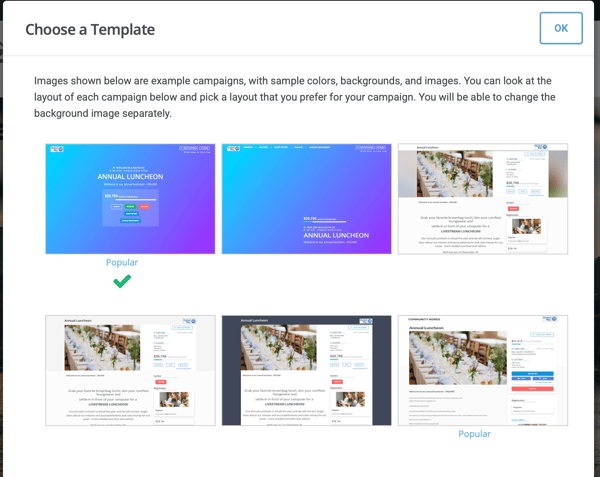
In the Page Design editor, click Page Template.

-
Browse available templates and preview their layouts.
-
Select the template that best fits your campaign.
-
Click OK to apply.
Tip: Templates control layout only—you can still customize colors, images, and content after selecting one.
Compelling Page Examples:
Numbered top then bottom, left to right.
Donation Page using Template #1
Volunteer Campaign Page Template #2
Membership Campaign Page Template #5
Event Campaign Page Template #6
To add or change a background image:
-
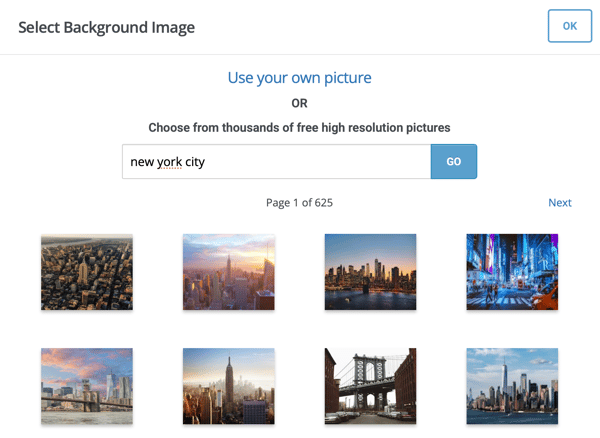
Click Background in the Page Design toolbar.

-
Choose Use your own picture or search by keyword (for example, a city, event type, or cause).

-
Select an image and click OK.
Images can be sourced from built-in libraries or uploaded directly from your computer, cloud storage, or image URL.
Customizing Colors, Text, and Buttons
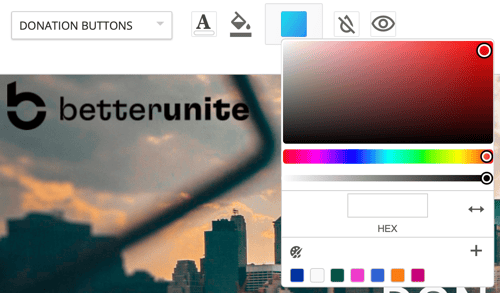
Use the styling dropdown to customize individual page elements.
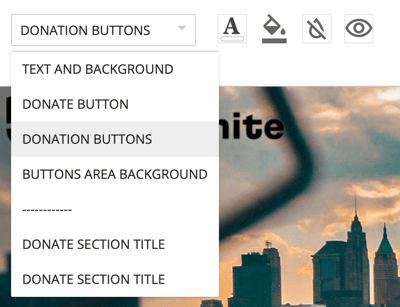
From this dropdown menu, you can edit:
-
Page background colors (Instead of an image)
-
Headline Colors
-
Button colors
-
Button Text Colors
-
Section Title Colors
-
Button area background
** There may be more options in this dropdown, so please scroll down in the dropdown menu to explore all the page text you can customize.
Best practice: Use high-contrast colors for buttons and headings to improve accessibility and conversions.
Pro Tip: Enter your organizations color codes and hit the plus sign in the bottom right of the color selector box. This saves your organizations branded colors for you to select from in the future.
Adjusting the Content Layout
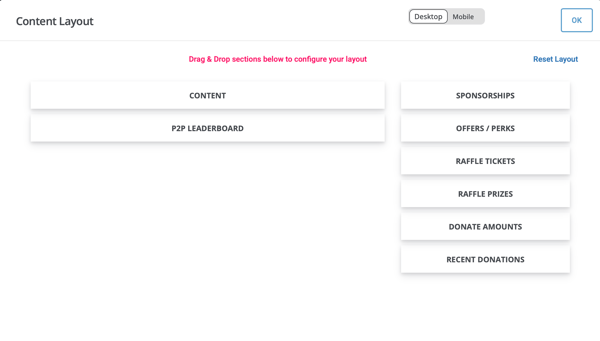
The Content Layout editor lets you control the order and placement of sections on your page.

To customize layout:
-
Click Content Layout.
-
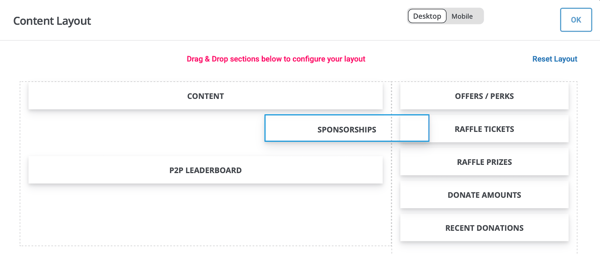
Drag and drop sections to reorder them.
-
Arrange sections into one or two columns (depending on template).
-
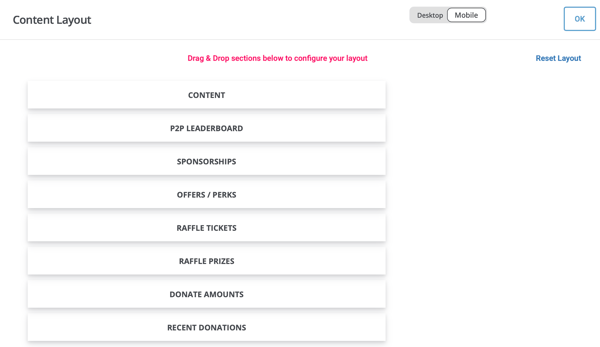
Toggle between Desktop and Mobile views to preview responsiveness.
-
Click OK to save.
You can also reset the layout at any time using Reset Layout.
Saving and Previewing Your Page
Once you’ve finished customizing:
-
Click Save in the top-right corner.
-
Use View to preview the live campaign page.

-
Review both desktop and mobile layouts to ensure everything looks polished.
Customize Labels for Campaign Pages
In addition to visual styling and layout, BetterUnite allows you to customize the text labels shown on your campaign page. This is helpful if you want to match your organization’s language, clarify calls to action, or tailor wording for a specific audience.
You can customize labels such as:
-
Button text (for example, “Donate,” “Register,” or “Buy Tickets”)
-
Section headers
-
Field labels and prompts shown to supporters
To access label customization:
-
Navigate to Edit>Page Design>Customize Labels.
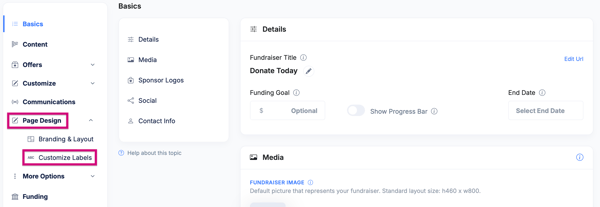
Label changes apply directly to your campaign page and work seamlessly alongside Branding & Layout settings.
Tip: Use Customize Labels to make your calls to action more compelling, such as changing “Donate” to “Give Hope” or “Support This Cause.”
Tips for Creating a High-Converting Campaign Page
Use a clear headline and concise messaging
Choose an emotionally engaging background image
Keep donation or registration buttons above the fold
Minimize clutter—keep the content and messaging clear and concise
Preview on mobile before sharing publicly
Related Help Articles:
Need Additional Help?
We're here to assist you in any way we can. Don't hesitate to reach out to support@betterunite.com
Let's go do some good.