-1.png?width=240&height=100&name=Heading%20(2)-1.png)
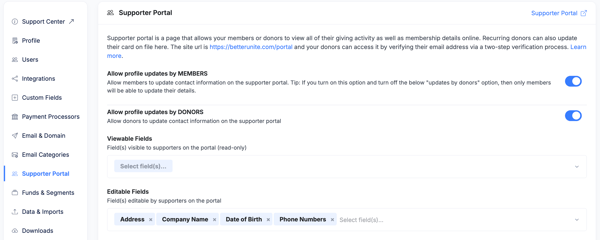
The Supporter Portal is the self-service hub where your members, donors, and volunteers manage their relationship with your organization. Portal Settings give you control over what supporters see, what they can change, and how the portal is organized.
To access these settings, go to Settings > Supporter Portal.
Profile Update Permissions
These toggles control whether supporters can update their own contact information from the portal.
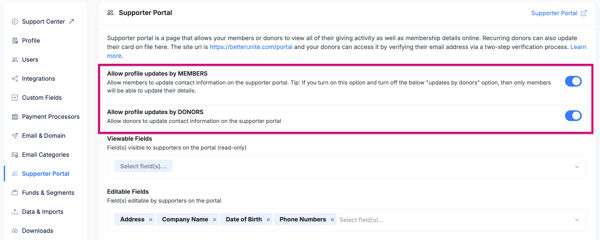
- Allow profile updates by Members: When enabled, supporters with an active membership can edit their own contact details from the portal. When disabled, their profile is read-only.
- Allow profile updates by Donors: When enabled, supporters who have made donations (but may not have a membership) can edit their own contact details. When disabled, their profile is read-only.
These two settings are independent — you can allow members to self-update while keeping donor profiles locked, or vice versa.
Viewable and Editable Fields
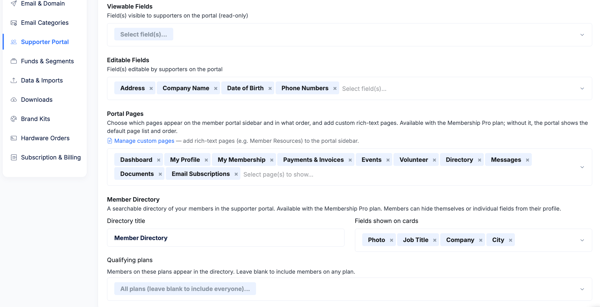
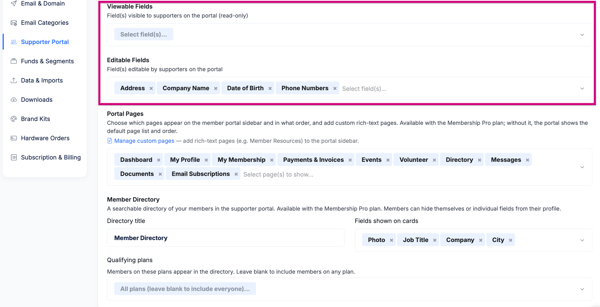
You can control which contact fields appear in the portal and whether each field is editable or just viewable. This gives you granular control — for example, you might show a member their date of birth without letting them change it, while allowing them to update their phone number.
Viewable Fields
- Fields in the Viewable list appear on the member’s Profile tab in the portal. The member can see the value but cannot change it unless the field is also marked as editable.
- Use viewable fields for data you want members to be aware of (such as their membership start date or date of birth) without allowing self-service changes.
Editable Fields
- Fields in the Editable list can be updated directly by the member from their Profile tab. Changes are saved immediately to their contact record in BetterUnite.
- A field must be viewable before it can be editable — you cannot make a field editable without also making it visible.
- Common fields to make editable include: address, phone numbers, company name, employer, job title, occupation, and custom fields such as dietary preferences.
- Fields tied to reporting, compliance, or sensitive data (such as date of birth or membership ID) are often better left as viewable only.
Portal Pages
The Portal Pages section controls which tabs appear in the Supporter Portal navigation and the order they are displayed. Each tab can be shown or hidden independently.
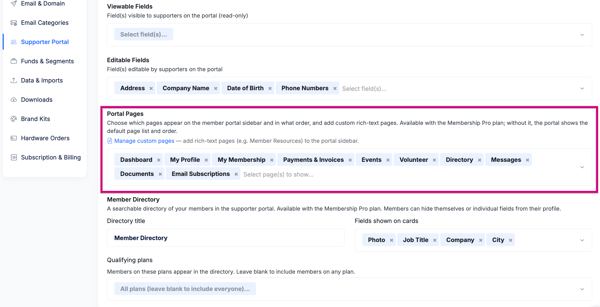
- Use the drag handles to reorder tabs. The order set here is the order members see in their portal navigation.
- Toggle any tab off to hide it from all supporters. Hidden tabs do not delete any data — they simply stop appearing in the portal.
- Available tabs include: Dashboard, Profile, Member Directory (Membership Pro), My Membership, Payments & Invoices, Events, Volunteer, Messages, Documents, Email Subscriptions, and any Custom Pages you have created.
To restore a hidden tab, return to this page and toggle it back on.
Member Directory
The Member Directory is a searchable list of members visible to other members in the portal. It is available on Membership Pro plans only. If your organization is not on Membership Pro, this section will not appear in your portal settings.
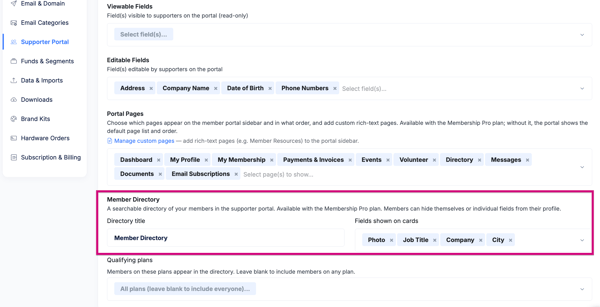
- Display Name: Customize what the directory is called in the portal navigation. The default is “Member Directory,” but you can rename it to match your organization’s terminology (for example, “Alumni List” or “Donor Network”).
- Directory Fields: Choose which contact fields appear on each member’s card in the directory. Only fields you select here will be visible to other members.
- Plan Restriction: Optionally restrict which members appear in the directory by plan. For example, you can configure the directory to show only members on a Gold plan, keeping lower-tier members out of the searchable list.
- Member Visibility Control: Individual members can choose whether they appear in the directory from their own Profile tab. Admins can always see all members regardless of this setting.
To remove the Member Directory from the portal entirely, toggle it off in the Portal Pages section above.
Household Management
This setting is available on the Plan level controls whether the primary subscription owner can add and remove household members directly from their Supporter Portal.
- When enabled, the primary member sees an Add Member button in their Household Members section and can manage the list themselves.
- When disabled, the Household Members section is still visible in the portal (so members can see who is in their household), but only an admin can make changes from the Membership Center.
Regardless of this setting, admins always have full control to add and remove household members from the subscription detail page. See Household Memberships for more detail.
Custom Pages
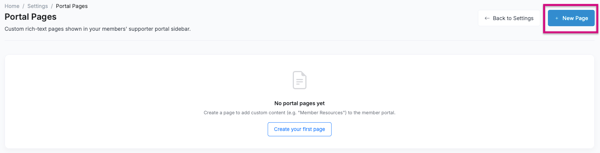
Manage Custom Pages let you add your own rich-text content to the portal navigation. This is available on Membership Pro plans only.

- Click Add Page to create a new custom portal page.
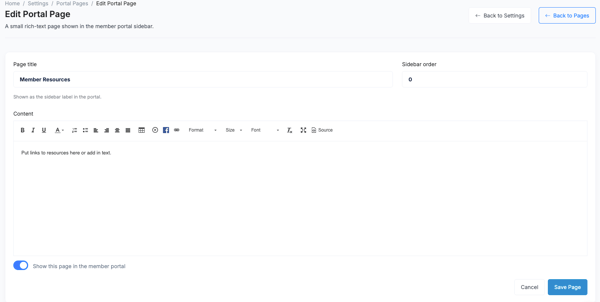
- Each page has a name (shown in the portal navigation) and a rich text content area where you can write announcements, post waivers, share resources, list membership rules, or include any other content you want members to find when they log in.
- Pages appear in the portal in the order set by the Portal Pages section. Drag them in that list to reorder.
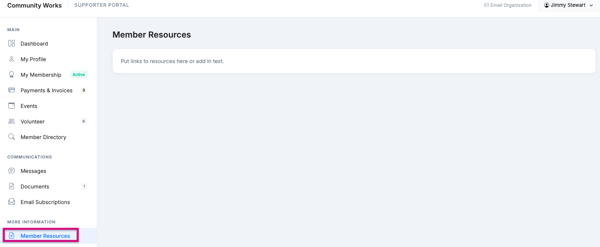
- To remove a custom page, delete it here or toggle it off in the Portal Pages list.

Saving Your Settings
- Click Save Portal Settings after making any changes. Settings take effect immediately for all supporters.
- Changes to portal page visibility and order apply to all supporters at once — there is no per-member configuration for which tabs appear.
Frequently Asked Questions
If I turn off profile updates for members, can they still see their information?
Yes. Disabling profile updates makes the fields read-only — members can still view everything in the Viewable Fields list, they just cannot make changes. If you want to hide a field entirely, remove it from the Viewable Fields list.
Can I make a field editable for members but not for donors?
Not at the field level — the Editable Fields list applies to any supporter who has update permission (whether member or donor). You control which group can update their profile using the top-level Member and Donor permission toggles, and you control which fields they can change using the Editable Fields list.
Will hiding a portal tab delete any data?
No. Hiding a tab (such as Documents or Events) only removes it from the portal navigation. The underlying data is unaffected and the tab can be restored at any time by toggling it back on.
Is the Member Directory visible to non-members?
No. The Member Directory is only visible to supporters who are logged in and have an active membership. Donors or supporters without a membership will not see the directory tab.
Can I have more than one Custom Page?
Yes. You can create as many custom pages as you need. Each page appears as its own tab in the portal navigation. Use the Portal Pages section to control their order and visibility.
Do Custom Pages support images or links?
Yes. The Custom Page content editor is a rich text editor, so you can add formatted text, hyperlinks, and images.
Need Additional Help?
We’re here to assist you in any way we can. Don’t hesitate to reach out to support@betterunite.com
Let’s go do some good.