-1.png?width=240&height=100&name=Heading%20(2)-1.png)
BetterUnite’s SMS Campaigns let you send custom text messages to your contacts account-wide — including across multiple events, to CRM segments, and to any custom list you build. This is different from event-level guest texting.
Please note: If you want to send a text to guests within a specific event (such as a mid-event auction reminder), a dedicated phone number is not required. See Send SMS / Text Messages to Guests for those instructions.
Before You Start
Two things must be in place before you can send SMS campaigns from Marketing > SMS Messaging:
- A dedicated phone number, purchased and approved. Phone number approval takes time and requires specific compliance content to be posted on your organization’s website. Your BetterUnite account manager can help guide you through the approval process. See SMS Messaging: Claim Your Phone Number & Purchase Message Bundles to get started.
- Text message credits (bundles) purchased in advance. One credit is consumed per message sent. If a contact appears on multiple lists, BetterUnite automatically deduplicates and sends to that phone number only once, so you are never charged twice for the same recipient. Bundles are available in groups of 1,000, 5,000, 7,500, 10,000, or 25,000.
Navigating to SMS Campaigns
- Navigate to Marketing > SMS Messaging.
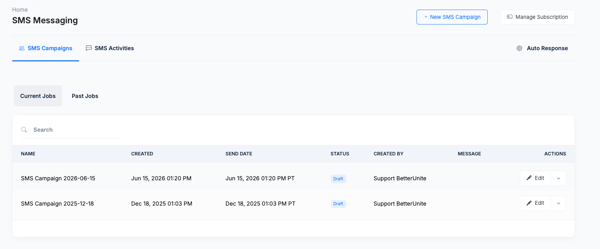
- The SMS Campaigns tab shows all your campaigns, organized into Current Jobs (drafts and scheduled) and Past Jobs (sent campaigns).
- Each row shows the campaign name, created date, scheduled send date, status, who created it, and message content.
Creating a New SMS Campaign
- Click + New SMS Campaign in the top right corner.
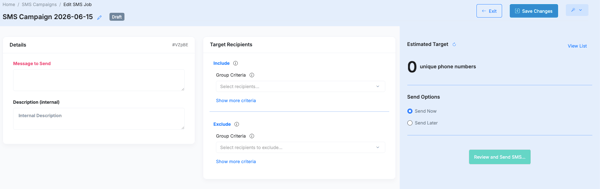
- A new campaign is created in Draft status. The campaign title is auto-generated with today’s date and can be edited by clicking the pencil icon next to the name.
Details
- Message to Send: Type the text message your contacts will receive. Keep messages concise — standard SMS is 160 characters. Messages over 160 characters are split into multiple segments, and each segment consumes one credit.
- Description (internal): An optional internal note about the campaign. This is not sent to contacts.
Target Recipients
- Use the Include section to define who receives the message. Click Select recipients… to choose from BetterUnite’s curated lists or any custom contact lists you have built.
- Use the Exclude section to remove specific groups from your audience using the same criteria. This is useful for suppressing guests who have already been contacted or who belong to a different segment.
- Click Show more criteria to access additional filtering options.
- The Estimated Target panel on the right updates in real time and shows the number of unique phone numbers that will receive the message. Click View List to preview the exact recipients before sending.
Send Options
- Select Send Now to deliver the message immediately after reviewing.
- Select Send Later to schedule the campaign for a specific future date and time.
- When you are ready, click Review and Send SMS… to confirm the send.
Reviewing Campaign Results
Once a campaign has been sent, click on it from the Past Jobs list to view its results. The campaign detail page has two tabs: Overview and Activities.
Overview Tab
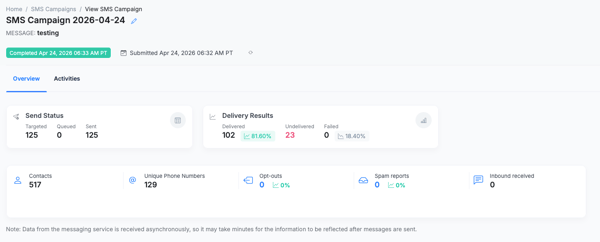
- Send Status shows how many contacts were targeted, queued, and sent.
- Delivery Results shows how many messages were delivered, undelivered, or failed, along with percentage breakdowns.
- Additional metrics include total contacts reached, unique phone numbers, opt-outs, spam reports, and any inbound replies received.
Please note: Data from the messaging service is received asynchronously, so it may take a few minutes for delivery results to be fully reflected after messages are sent.
Activities Tab
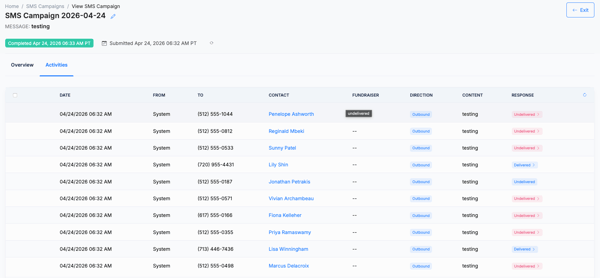
- The Activities tab shows a record of every individual message sent, including the date, recipient phone number, linked contact, direction (outbound), message content, and delivery response status.
- You can use this view to identify specific contacts whose messages were undelivered and follow up as needed.
SMS Activities
- The SMS Activities tab at the top of the SMS Messaging page shows a combined log of all inbound and outbound SMS activity across all campaigns — not just a single campaign. Use this for an account-wide view of messaging activity.
Auto Response
- Click Auto Response (top right of the SMS Campaigns tab) to configure an automatic reply that is sent when a contact texts your dedicated number. This is useful for setting an out-of-office reply or a standard acknowledgment message.
Frequently Asked Questions
Do I need a dedicated phone number to text guests within an event?
No. Event-level guest texting (such as sending a check-in reminder or auction alert to attendees) does not require a dedicated phone number. Navigate to your Event Dashboard to send those messages. See Send SMS / Text Messages to Guests.
How long does phone number approval take?
Approval timelines vary and depend on the carrier registration process. Your account manager can advise on current timelines and help ensure your website has the required compliance content in place before you apply.
How many credits does each message use?
One credit per message sent. If a contact’s phone number appears across multiple lists or segments in your campaign, BetterUnite deduplicates automatically so the message is only sent once and only one credit is consumed. If your message exceeds 160 characters it is split into multiple segments, and each segment uses one credit.
What does “Undelivered” mean?
An undelivered message was sent by the system but not received by the recipient. Common reasons include an invalid or disconnected phone number, or the carrier blocking the message. Undelivered messages still consume a credit. Use the Activities tab to see which contacts had undelivered messages.
Can contacts reply to my messages?
Yes. Replies are tracked in the Activities tab and counted in the Inbound received stat on the campaign Overview. You can also set up an Auto Response to acknowledge replies automatically.
Can I send to contacts who are not event guests?
Yes. SMS Campaigns under Marketing > SMS Messaging can target any contact in your BetterUnite account, not just event guests. This is the key difference between account-level SMS Campaigns and event-level guest texting.
Need Additional Help?
We’re here to assist you in any way we can. Don’t hesitate to reach out to support@betterunite.com
Let’s go do some good.