
Open the Engagement page
- Go to Volunteers (Volunteer Management).
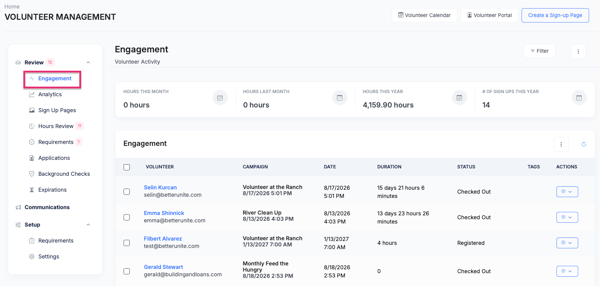
- Under Review, click Engagement. This is the first screen you see when you open Volunteer Management.
What you see
Totals at the top. Four tiles summarize your volunteer activity:
- Hours This Month
- Hours Last Month
- Hours This Year
- # of Sign Ups This Year
The activity list. Each row shows:
- Volunteer. The volunteer's name, linked to their contact record, with their email address.
- Campaign. The sign-up page, plus the shift name if it has one.
- Date. When the volunteer served or is scheduled to serve.
- Duration. How long. If the volunteer has recorded start and end times, those are used. Otherwise the length of the scheduled shift is used. Where approved check-in hours exist, they replace the scheduled length.
- Status. The volunteer's sign-up status.
- Tags. Any tags on this sign-up.
- Actions. The gear menu for working on that row (see below).
Find what you need with filters
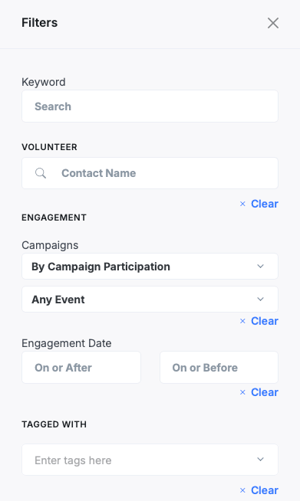
Click Filter at the top of the list to open the filter panel, then click Search to apply it.
- Keyword. Search by a word or phrase.
- Volunteer. Start typing a contact's name to see one person's history.
- Campaigns. Narrow to a specific sign-up page.
- Engagement Date. Set an On or After and/or On or Before date to look at a time period, such as last quarter or a single event day.
- Tagged with. Show only sign-ups with certain tags.
Each section has its own Clear link, and Clear all filters resets everything.
Work on an individual record
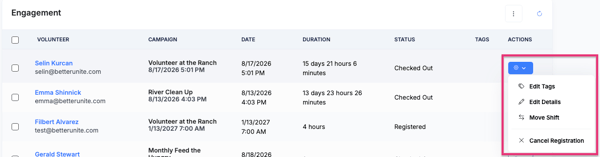
Click the gear icon at the end of a row to:
- Edit Tags. Add or remove tags on that sign-up. This is handy for labeling a particular effort so you can filter for it later.
- Edit Details. Correct the volunteer's start and end times. The page shows the resulting duration. The end time has to be later than the start time. The sign-up page itself can't be changed here.
- Move Shift. Move the volunteer to a different shift of the same job. This only shows for sign-ups that have a shift.
- Cancel Registration. Remove the volunteer's sign-up. BetterUnite asks you to confirm first, and the confirmation notes that this can't be undone, so double-check before you click OK.
Add hours for one volunteer. Filter the list down to a single volunteer, then open the ⋮ menu above the list and choose Add Hours to log time for that person. The option appears only when the list is filtered to one volunteer.
Update hours for a group
If you have the Review Hours access right (part of Volunteer Pro), you can set times or credited hours for many volunteers at once. Tick the checkboxes on the rows you want, then click Edit hours in the bar that appears above the list. The checkbox in the header selects the rows on the current page. For a full walkthrough, see Volunteer Hours in Bulk.
Export your data
Open the ⋮ menu next to Filter and choose:
- Export Engagement. A row-level file of the sign-ups and hours that match your filters.
- Export Engagement Summary By Contact. One line per volunteer, with their totals.
The exports include contact information along with the volunteer hour details, so you can build your own reports, share totals with a funder, or recognize your top volunteers.