
- Open Volunteers (Volunteer Management) and click Sign Up Pages, or go to Volunteers & Sign Up Pages from the main menu.
- Open your sign-up page and click Edit.
- In the left menu, click Volunteer setup.
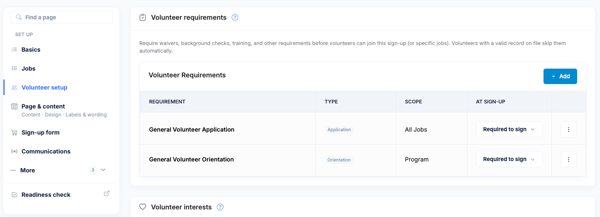
Availability: The Volunteer Requirements, Volunteer Interests, Volunteer Skills and Volunteer Impact Tracking cards are part of Volunteer Pro. If your plan doesn't include them, the tab and cards still show, with a prompt explaining what an upgrade adds. The Advanced options card at the bottom of the tab is available on all plans.
What's on the tab
- Volunteer requirements
- Volunteer interests
- Volunteer Skills
- Volunteer impact tracking
- Advanced options
1. Volunteer requirements
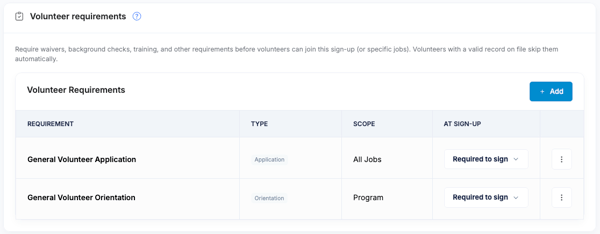
Require waivers, background checks, training and other items before volunteers can join this sign-up page, or specific jobs on it. A volunteer who already has a valid record on file skips the requirement automatically.
Before you start: Requirements are created once for your whole organization in Volunteer Management → Setup → Requirements. If none exist yet, this card tells you to create them there first. For how requirements are built, see Volunteer Requirements: Waivers, Trainings, and Documents.
To attach a requirement to this page:
- On the Volunteer requirements card, click Add.
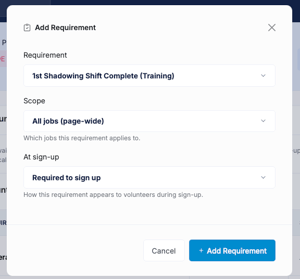
- In the Add Requirement window, choose the Requirement. The list shows each requirement with its type.
- Choose the Scope:
- All jobs (page-wide): applies to every volunteer who signs up on this page.
- A specific job: applies only to volunteers who choose that job.
- Choose how it works At sign-up:
- Required to sign up: the volunteer has to complete it before they can sign up.
- Show as reference: volunteers see it but it doesn't block sign-up. This option isn't offered for Application-type requirements, which always need to be required.
- Hidden: volunteers don't see it on this page.
- Click Add Requirement.
The card then lists each requirement with its Requirement name, Type, Scope and At sign-up setting. To change the At sign-up setting, pick a new option in that row's list. It saves right away. To take a requirement off this page, click the three dots at the end of the row and choose Remove, then confirm. Removing it from the page doesn't delete the requirement from your organization.
For how gating plays out for new and returning volunteers, see Gating Volunteer Signup Behind Requirements.
2. Volunteer interests
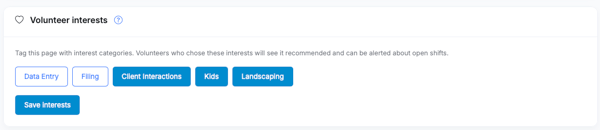
Tag this page with interest categories. Volunteers who chose matching interests in their profile will see the page recommended to them, and can be alerted about open shifts.
Before you start: Your list of interest categories lives in Volunteer Management → Settings → Volunteer Preferences. If that list is empty, this card links you there first.
- On the Volunteer interests card, click each interest that fits this page. Selected interests are highlighted. Click again to turn one off.
- Click Save interests.
See Skills and Interest Matching with Open-Shift Alerts to learn how the matching works.
3. Volunteer Skills
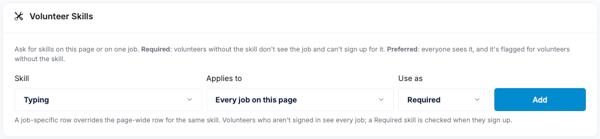
Ask for skills on the whole page or on a single job. Required means volunteers without the skill don't see the job and can't sign up for it. Preferred means everyone sees it, and it's flagged for volunteers who don't have the skill.
Before you start: Skills come from one list for your organization, set in Volunteer Management → Settings → Volunteer Preferences → Skill options.
- On the Volunteer Skills card, choose the Skill.
- Under Applies to, choose Every job on this page or pick one job (listed as Only: [job name]).
- Under Use as, choose Required or Preferred.
- Click Add.
Each skill you add appears in a table showing the Skill, Applies to and How it's used. To change one, click the three dots on its row and choose Make preferred or Make required, or Remove. A job-specific row overrides the page-wide row for the same skill. Visitors who aren't signed in see every job, and a Required skill is checked when they sign up.
For the full picture, see Requiring Skills for Volunteer Jobs.
4. Volunteer impact tracking
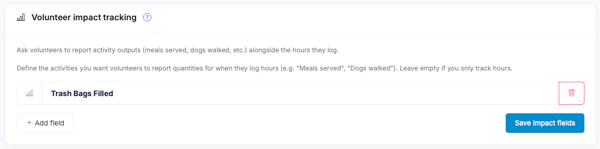
Hours tell you how long volunteers served. Impact fields tell you what they accomplished. Define the activities you want volunteers to report a number for when they log their hours, such as "Meals served" or "Dogs walked." Leave this empty if you only track hours.
- On the Volunteer impact tracking card, click Add field.
- Type the activity label (up to 80 characters). Use clear, countable labels, since volunteers enter a number for each.
- Repeat for each activity you want to measure.
- Click Save impact fields.
To remove a field, click the trash icon next to it and save again. To rename one, change the label and save. Impact fields belong to this page, so each sign-up page keeps its own list. For what volunteers see and how reported activity appears in Hours Review, see Tracking volunteer impact and activities.
5. Advanced options
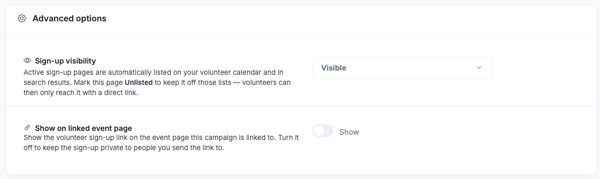
These two settings control where your sign-up page shows up. They're saved when you save the page.
- Sign-up visibility. Choose Visible or Unlisted. Active sign-up pages are automatically listed on your volunteer calendar and in search results. Choose Unlisted to keep this page off those lists, so volunteers can only reach it with a direct link. This setting doesn't appear for your organization's default always-on page.
- Show on linked event page. If this sign-up page is linked to an event, this switch shows the volunteer sign-up link on that event page. Turn it off to keep the sign-up private to the people you send the link to. To link a page to an event, use the Linked event list on the page's main Edit screen.
Volunteer settings that live somewhere else
- Gather Volunteer Information. Collect each volunteer's details when someone signs up several people at once. Find it under More Options → Advanced Options on the page. See Configuring and Managing Your Volunteer Campaign.
- Jobs and shifts. Set up on the page's main Edit screen. See Creating Jobs and Shifts on a Volunteer Sign-Up Page.
- Checkout options, tags and more. The volunteer form fields and messaging use the same tabs as other campaigns. See Checkout Options: Every Setting on the Tab.
- Organization-wide lists. Requirements, interests and skills are created once under Volunteer Management and then reused on every sign-up page.