
Guest Carts (Manage Carts)
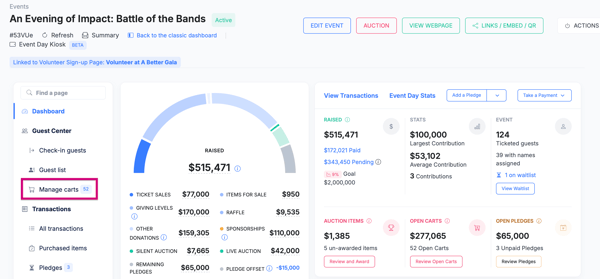
The carts page collects everything a guest buys or wins during your event: raffle tickets, drinks, merchandise, paddle raises, pledge balances, and auction items. At the end of the event you check each guest out here. Open it from Manage carts in your Event Dashboard menu.
Find a cart
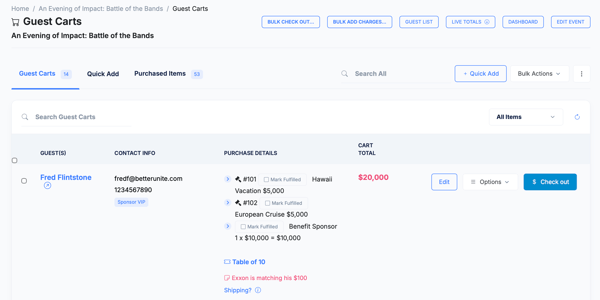
Search by guest or bidder, or choose Show All to list every cart with items in it.
Check a guest out
Each cart has a Check out button.
- Green: the guest has a card on file. Click through, confirm the items, and charge the card. The cart shows the card on file.
- Blue: no card on file. Click it to enter a card, or use the cart's dropdown to take an offline payment.
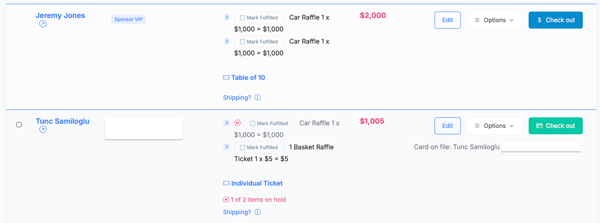
The checkout page lists every item and lets you add to or change the cart before completing the transaction. When you finish, the cart is cleared, the guest is notified of the charges, and the transaction is recorded for that guest.
Cart Options
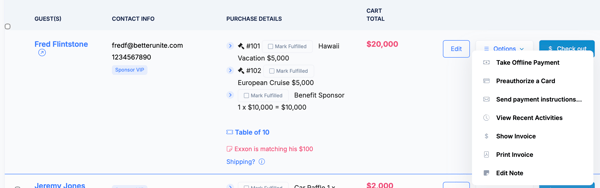
Open the Options dropdown on a cart for:
- Take Offline Payment: record cash or check.
- Preauthorize a Card: add a card for the first time or switch to another card.
- Remove Card on File: clear the saved card. Shows only when the guest has one.
- Send payment instructions...: email or text the guest a link to pay on their own device. Shows only when the guest has an email address or phone number and no card on file.
- Show Invoice and Print Invoice: preview or print an invoice.
- Edit Note: add a note to the cart.
A pause icon next to a line means the item is on payment hold. It stays in the cart but is left out of checkout.
Add items and charges
- Quick Add: add any in-event item, or a manual donation, to a guest's cart by name or paddle number. If an auction item has not been awarded yet, you are offered options before it is added.
- BULK ADD CHARGES...: add the same charge to many carts. Not available in Event Day Kiosk mode. See Add Bulk Charges to Carts.
- Shipping and sales tax: see Add Shipping Charges and Charging Sales Tax.
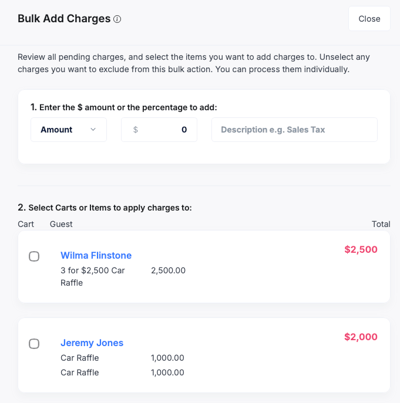
Bulk check out
BULK CHECK OUT... charges many carts at once. It is available only when your payment processor is Stripe, and it is hidden in Event Day Kiosk mode. Only guests with a registered card are listed, and you can untick any charge to leave it out. Fees can be assigned to the organization or the guest, in a combined or detailed view.
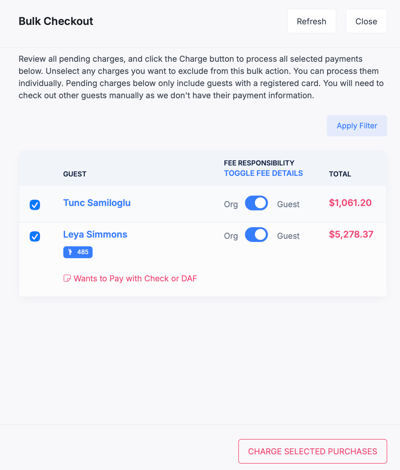
All purchases
The All purchases tab lists every transaction. Search it and export to a file if you need to.
Related articles
- Add Shipping Charges to Auction Items or Items Sold at My Event
- Charging Sales Tax
- Add Bulk Charges to Carts
- How do I pre-authorize guests so I can charge them at the event?
FAQs
Why is Check out blue for some guests and green for others? Green means a card is on file. Blue means there is none.
A guest wants to pay on their phone. What do I do? Use Send payment instructions... on their cart.
I cannot see Bulk Check Out. It requires Stripe and is hidden in kiosk mode.
Why is an item left out of checkout? A pause icon means the item is on payment hold.
Can I remove a guest's saved card? Yes, use Remove Card on File in the cart dropdown.
Need Additional Help?
We're here to assist you in any way we can. Don't hesitate to reach out to support@betterunite.com
Let's go do some good.