-1.png?width=240&height=100&name=Heading%20(2)-1.png)
The Supporter Portal is a self-service hub where your members, donors, and volunteers can view and manage their relationship with your organization — all in one place. Members access the portal at betterunite.com/portal using two-step email verification (no password required).
As an admin, you can view any supporter’s portal by clicking View in Supporter Portal from their contact record, member record, or subscription page.
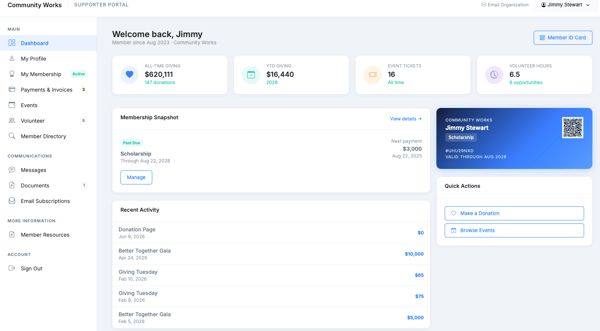
Portal Home / Dashboard
- The home screen gives a quick overview: active membership name and status, key stats, and a Member ID card with a QR code. The QR code can be scanned to validate membership at events or venues.
- Quick links for common actions are shown on the dashboard: Make a Donation, Browse Events, and more depending on your portal configuration.
Profile
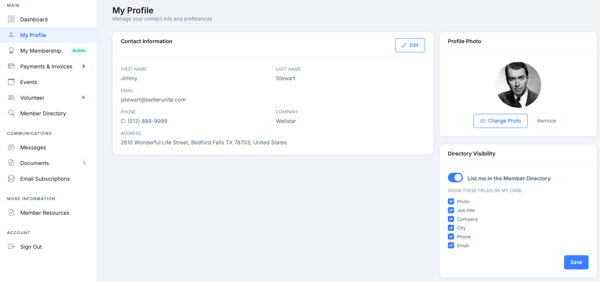
- The Profile tab shows the member’s contact information. Fields marked as viewable are displayed, but only fields your organization has designated as editable can be updated by the member.
- This distinction (viewable vs. editable) is controlled by your admin in Settings > Supporter Portal. For example, you might display a member’s date of birth but not allow them to change it.
- Members can upload or update their profile photo from this tab.
Member Directory
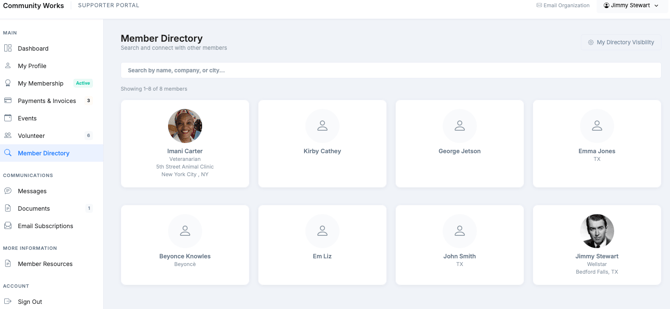
If your organization has enabled the Member Directory (available on Membership Pro plans), members can browse a searchable list of other members in the portal.
- Members appear as cards showing the fields your organization chose to display (name, company, contact info, etc.).
- Each member can control whether they appear in the directory from their own Profile tab settings.
- Your organization can restrict directory visibility to members on specific plans (for example, Gold members only).
- To disable the directory entirely, remove it from the portal page list in Settings > Supporter Portal.
My Membership
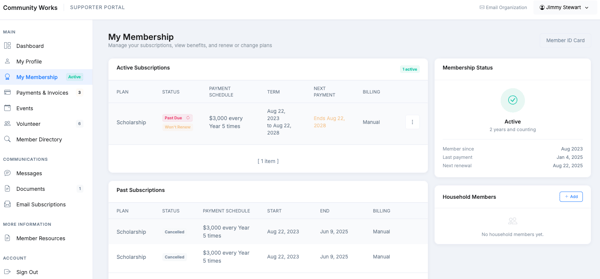
This tab is the heart of the membership experience. It shows the member’s active subscriptions, benefits, and membership history.
Active Subscription
- The active subscription shows plan name, billing amount, billing frequency, and current term dates.
- Benefits associated with the plan appear here as well.
- Global benefits — benefits your organization has assigned to all members or to members on specific plans — also appear here. Admins can configure global benefits without editing each individual member record.
Actions Available to Members
- Renew: If the membership is expiring within the next 90 days, a Renew Now button appears so the member can extend before it lapses.
- Change Plan: Members can switch to a different membership plan from their portal if this is allowed by the plan configuration.
- Stop Renewal: Keeps the membership active until the end of the current term, then does not renew. The membership remains valid until expiration.
- Cancel: Cancels the membership immediately.
- Charge Card on File: Allows the member to make an additional donation using the card on file.
Household Members
- If the plan allows household members, a Household Members section appears here. The primary member can add, view, or remove household members from this section. See Household Memberships for details.
Past Subscriptions
- Previous memberships (completed, canceled, or expired) are listed below the active subscription.
Payments & Invoices
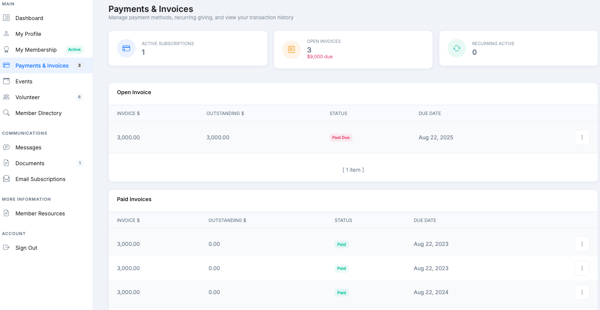
- Open Invoices: Any outstanding invoices (upcoming payments due). Members can see the due date and print an invoice.
- Recurring Payments: Recurring charges not tied to a subscription (for example, a recurring donation). Members can update the card on file for recurring payments from this section.
- Paid Invoices: A history of paid subscription invoices, each printable.
- All Donations: A complete history of all payments the member has made through BetterUnite, regardless of type. Members can access their confirmation pages and download receipts from here.
Events
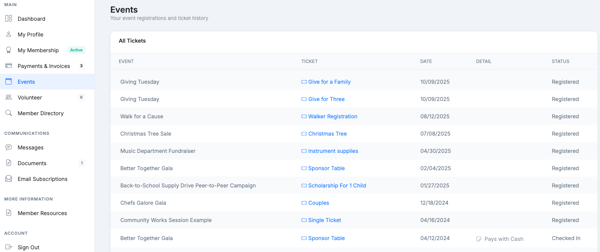
- All event tickets — past and upcoming — are listed here. Clicking on a ticket takes the member to their personal event ticket page where they can view event details, share their ticket, and access their guest link.
Volunteer
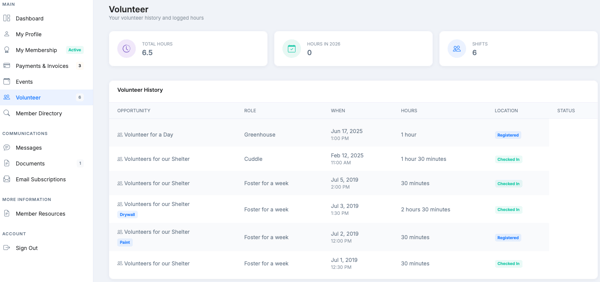
- Upcoming volunteer shifts and a history of completed shifts are shown here. The tab includes basic totals such as total hours volunteered.
Messages
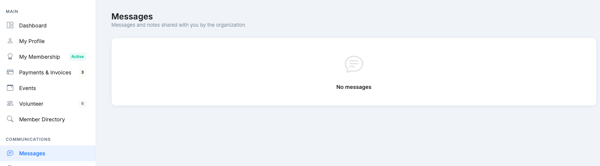
The Messages tab shows communications from your organization to the member. There are two types of messages:
- Member Messages: Individual notes added to this member’s record by your admin team (these are not the same as internal admin notes, which are not visible to members).
- Global Announcements and Alerts: Messages and alerts your organization has broadcast to all members, or to members on specific plans, using the Global Communications feature. Alerts appear as a banner on the portal dashboard. Notes appear in this Messages tab.
- Global Benefits: Benefits added globally (not per-plan or per-contact) will also appear in the member’s benefits list.
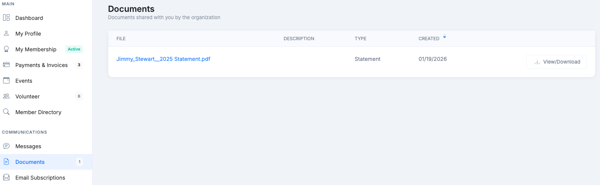
Documents
- Documents your organization has made available on the Supporter Portal appear here. Members can view and download them. Admins add documents to a member’s portal from the member record and choose to make them portal-visible.
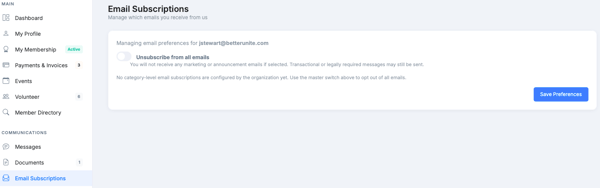
Email Subscriptions
- Members can manage their email preferences directly from the portal. If your organization uses email categories, members can opt in or out of each category.
- If the member has a secondary (alternate) email address on file, they can manage subscriptions for both their primary and secondary email addresses here.
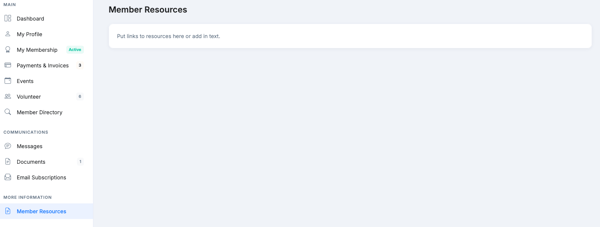
Custom Pages
Admins can create custom rich-text pages that appear in the portal navigation (available on Membership Pro plans). These pages can contain announcements, reference materials, downloadable waivers, membership rules, or any other content you want members to access when they log in.
- Custom pages are created and managed in Settings > Supporter Portal.
- You control the name of each page, its content, and the order it appears in the portal navigation.
Admin: Configuring the Supporter Portal
As an admin, you control what appears in the portal and how it behaves. Go to Settings > Supporter Portal:
- Portal Pages: Choose which tabs appear in the portal and set their display order. You can remove any tab (including the Member Directory) to hide it from all members.
- Editable vs. Viewable Fields: Select which contact fields members can edit vs. only view. For example, you might allow members to update their phone number but not their date of birth.
- Profile Update Permissions: Separate toggles for whether members and/or donors can update their profile information.
- Member Directory Settings: Rename the directory (for example, call it “Alumni List”), choose which fields appear on member cards, and optionally restrict visibility to members on specific plans.
- Custom Pages: Create and manage rich-text portal pages with your own content.
Learn how to configure Portal Settings.
Frequently Asked Questions
How do members log in to the portal?
Members visit betterunite.com/portal and enter their email address. BetterUnite sends a verification code to that email. No password is required — the code is the login. The session remains active for 30 days before requiring re-verification.
Can donors and volunteers also use the portal?
Yes. The portal is called the Supporter Portal because it serves members, donors, and volunteers. What each person sees depends on their relationship with your organization. A donor without a membership will see their donation history but no membership section.
What is the difference between a member message and an internal admin note?
Internal admin notes (added from the contact record) are for your team only and are never visible to the member. Member messages are intentionally written for the member to see and appear in their portal Messages tab. Global announcements and alerts are also visible to members.
Can a member change their card on file for their subscription?
Yes. Members can update their card on file for recurring payments from the Payments & Invoices tab. Admins can also update a member’s card on file from the subscription detail page in the admin view.
Is the Member Directory available on all plans?
No. The Member Directory is a Membership Pro feature. If you are not on Membership Pro, this tab will not appear in your portal configuration options.
How do I add a document to a member's portal?
From the admin side, open the member’s record and find the Documents section. When adding or editing a document, check the option to make it available on the Supporter Portal. The document will then appear in the member’s Documents tab.
Need Additional Help?
We’re here to assist you in any way we can. Don’t hesitate to reach out to support@betterunite.com
Let’s go do some good.