-1.png?width=240&height=100&name=Heading%20(2)-1.png)
Grant Center follows a grant from the first funder conversation through application, award administration, reporting, closeout, and renewal. The grant stays connected to the rest of BetterUnite: the funder is a contact, money received is a linked donation, work uses activities and tasks, files live in the content manager, and programs connect funding to the work it supports.
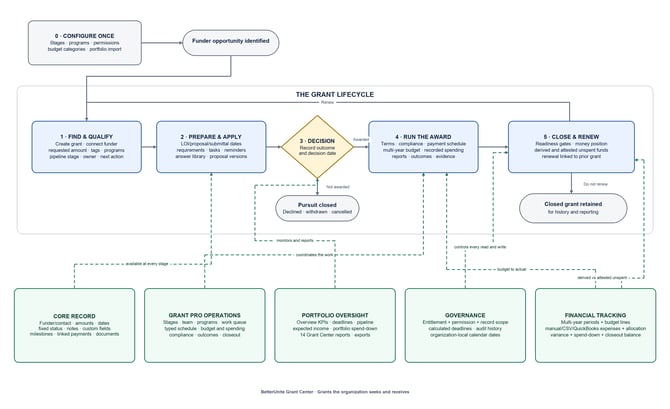
Core and Grant Pro
Grant Center uses two feature levels:
- Core preserves a complete, reportable grant record: funder, amounts, fixed status, dates, notes, custom fields, milestones, linked payments, documents, table views, imports, reports, and exports.
- Grant Pro coordinates the funded work: configurable stages, team ownership, programs, work queue, typed requirements, payment reconciliation, structured budgets and expenses, compliance, outcomes, closeout, renewal, and audit history.
If a feature described here is not visible, the organization may not have the required feature level, or the user may not have the required permission or grant scope.
Stage 0: configure and migrate the workspace
This is organization setup rather than a step repeated for each grant. Doing it first keeps the portfolio consistent.
Configure pipeline stages
Grant Pro administrators can create and order organization-defined stages, assign probability and lifecycle categories, identify terminal outcomes, choose colors, and require a note before entry. Stage movement is recorded without replacing the grant's fixed Status field.
Move existing grants onto the pipeline
Use stage migration to preview how fixed statuses map to the new stage model and then backfill the portfolio. Existing status values and history remain intact.
Define programs
Programs are the internal initiatives a grant supports. A grant can fund more than one program, and program assignments drive portfolio and spending reports. Inactive programs remain attached to historical grants.
Prepare the answer library
Store reusable organizational language by category and tags. Draft, Approved, Needs review, and Retired states help teams distinguish current content from material that needs attention. Usage history shows where an answer has been used.
Define budget categories
Create or seed organization-wide Revenue and Expense categories. Expense categories are classified as Direct, Indirect, or Match and may use one optional parent level. The categories create a consistent grant-reporting vocabulary without replacing the accounting chart of accounts.
Import an existing portfolio
The guided CSV workflow uploads and maps a file, previews row-level results, and then creates valid grants. Duplicate creation and unmatched-funder contact creation are optional and off by default. Bad rows do not prevent valid rows from importing.
Set access
Permissions control what a user may do, while record scope controls which grants the user may reach. Assigned-only users can see grants they own, collaborate on, or have assigned work against.
Stage 1: find and qualify
Create a grant as soon as an opportunity is real enough to track. Only the grant name is required at first; add detail as qualification progresses.
BetterUnite's existing Find and Apply for Grants search can help identify possible opportunities. Discovery remains separate from the lifecycle record;
Create the Grant Center record when the opportunity is ready to qualify and manage.
- Connect the funder and funder contact to existing CRM contacts.
- Record the requested amount, description, status, dates, tags, and custom fields.
- Assign one accountable owner and optional collaborators.
- Connect the grant to programs and related fundraising campaigns.
- Place the grant on the configured pipeline.
- Set one plain-language next action and date.
- Use notes for standing context and activities for dated calls, emails, meetings, and tasks.
Use Copy to start a similar new pursuit from an existing grant's descriptive fields. Copy does not bring forward the prior grant's work history.
The pipeline table supports search, filters, sorting, selectable columns, custom fields, saved grid settings, and filtered Excel export. Grant Pro also provides a board with stage totals, requested amounts, owner, next action, and days in stage.
Stage 2: prepare and apply
Turn the pursuit into an owned schedule of work.
Track application dates
Record LOI, proposal, submittal, and submitted dates on the grant. General milestones can hold any additional dated step.
Create typed requirements
Grant Pro requirements can represent a letter of inquiry, application, deliverable, meeting or site visit, compliance step, renewal, closeout, narrative report, financial report, or another obligation. Add an owner, due date, coverage period, and status. Create recurring requirements once and let BetterUnite generate each occurrence.
Coordinate work
Create a linked task when a requirement needs a separate work item. The work queue combines tasks, requirements, deadlines, next actions, and renewals. Presets show overdue, due this week, unassigned, renewal, and no-next-action items.
Use reminders
Deadline reminders are calculated from the due date and current state. An accepted, waived, or cancelled requirement is never considered overdue. Reminders go to the requirement owner when one is assigned; otherwise they use the grant owner.
Build and preserve the application record
Use the answer library for approved institutional language and the grant Documents area for proposals, budgets, letters, and supporting material. Document purposes and versions preserve the working record without scattering files across email and local drives.
Stage 3: record the decision
Record the decision date and outcome as soon as the funder responds.
- Awarded: enter the awarded amount, move to the appropriate award stage, and begin award setup.
- Declined: retain the record for win/loss reporting and funder history.
- Withdrawn or Cancelled: record the outcome so the pursuit no longer counts as active.
Terminal stage moves require confirmation and may require a note. Stage history records who moved the grant, when it moved, the note, and how long it spent in the stage it left.
Stage 4: run the award
Award administration brings together terms, cash, spending, obligations, results, and evidence.
Record award terms and compliance
Store agreement reference, effective dates, indirect rate, reporting basis, match requirement, and other structured terms. Add required or optional compliance items under Financial, Legal, Reporting, Insurance, Policy, Acknowledgment, or another category. Track each item as Not started, In progress, Met, At risk, or Not applicable.
Schedule and reconcile payments
Create expected installments with due dates and amounts. Money actually received remains a BetterUnite donation linked to the grant. Allocate received donations to installments so the schedule can show expected, received, remaining, status, and overdue age.
Expected income uses one source per grant to avoid double counting: typed payment installments first, then untyped milestones with expected amounts, then the awarded amount on the expected funding date. Requirements never contribute to expected income.
Build the budget
Under Schedule & work → Budget & spending, add one period for a simple award or multiple named periods for a multi-year award. Add one budgeted amount per category and period. The grid calculates Budgeted, Actual, Remaining, Percent spent, and Overspent at the line, subtotal, cost-type, and grant levels.
Record or import expenses
Record expenses manually with date, amount, payee, description, reference, optional budget line, and optional receipt. A negative amount records a credit or refund.
For recurring accounting exports, use the CSV spending importer. It maps QuickBooks, Xero, Sage Intacct, or spreadsheet columns; previews the exact result; detects duplicates; and records unmatched categories as Unallocated rather than dropping the spending.
Understand the financial calculations
- Budgeted = direct plus indirect expense budget, excluding Match.
- Spent = direct and indirect allocated expenses plus Unallocated expenses, excluding Match.
- Left in budget = Budgeted minus Spent.
- Percent spent = Spent divided by Budgeted; blank when nothing is budgeted.
- Match is shown separately because it comes from another funding source.
Deleting a budget line or period moves its expenses to Unallocated; it never deletes the spending. The accounting system remains the book of record, and BetterUnite does not post transactions or pay anyone.
Track reporting and results
Move requirements through preparation, submission, and acceptance. Define Output, Outcome, or Impact measures with units, baseline, target, target date, direction, owner, and aggregation method. Add period results, narrative, evidence, and the requirement in which a result was reported.
Cumulative measures sum period values. Snapshot measures use the latest result. Higher-is-better or lower-is-better determines whether the target is on track.
Preserve evidence and history
Upload agreements, reports, approved budgets, evidence, and receipts with a document purpose. Download all grant documents as a ZIP when a complete record is needed. Grant history combines stage transitions and significant domain changes into one chronological, read-only record.
Stage 5: close out and renew
Closeout checks whether the award is operationally complete and records any justified exception.
Closeout readiness gates
- Every requirement is Accepted, Waived, or Cancelled.
- Every payment installment is fully Received, Waived, or Cancelled.
- Every required compliance item is Met or Not applicable.
- Every active outcome measure with a target has at least one result.
- No grant task remains Open or In progress.
Closeout may continue with an uncleared gate only when the user records a reason. The exception remains part of the record.
Keep three money positions separate
- Funder still owes = Awarded minus Received.
- Derived unspent = Received minus recorded expenses. It is available only when at least one expense has been recorded.
- Attested unspent = a separately entered amount, source, and as-of date from the organization's accounting or reconciliation process.
If derived and attested unspent differ by more than one dollar, BetterUnite flags the discrepancy without deciding which amount is correct. Returned funds and return date are recorded separately.
Renew the grant
Renew creates a new Draft grant linked to the prior award. BetterUnite shifts dates by the award period, rounded to whole years, and allows the user to change them.
Renewal carries forward the funder, funder contact, programs, campaigns, owner, collaborators, award terms as a starting point, reset compliance items, outcome measures and targets, requirements, and payment installments.
Renewal does not carry forward outcome results, donation allocations, budget periods, budget lines, expenses, receipts, stage history, closeout, submitted and decision dates, or the prior agreement reference.
Portfolio oversight throughout the lifecycle
- Overview: pipeline, awards, received and expected funding, win rate, cash flow, concentration, deadline queues, team work, renewals, stage aging, spend-down, and data-quality attention.
- Pipeline: filterable table and Grant Pro stage board.
- Schedule & deadlines: portfolio agenda and expected-income projection.
- Work queue: assigned tasks, requirements, deadlines, next actions, and renewals.
- Contact Grants tab: every grant associated with a funder or funder contact.
Fourteen Grant Center reports cover payment reconciliation, funding by program, cash flow, requirements, compliance, renewals and closeouts, win/loss, funder scorecards, outcomes, team workload, data quality, revenue by year, budget variance, and spending by program. Reports and dashboards follow the same record scope as grant detail pages.
Access, scope, and dates
Every request is governed by three checks: whether the organization has the required feature, whether the user has the required permission, and whether the grant is inside the user's record scope. Dashboard and report totals use the same scope as detail pages, so a user does not see a total they cannot open.
Calendar dates are displayed in the organization's timezone. Event timestamps, such as stage moves and notification sends, are stored as instants and rendered locally.
Recommended operating rhythm
- Daily: Start in My work, resolve overdue items, and update next actions.
- Weekly: Review the pipeline, due-this-week obligations, stage aging, no-next-action grants, and unassigned work.
- Monthly: Reconcile installments, import spending, resolve duplicates and Unallocated expenses, and review variance and data quality.
- Quarterly: Review outcomes, at-risk compliance, program spend-down, overspending, funder scorecards, and team workload.
- At award: Record terms, create the compliance checklist, build the budget, schedule payments and reports, define measures, and attach the agreement.
- At closeout: Clear or explain readiness gates, reconcile financial figures, attach final deliverables, close the record, and decide whether to renew.